 LocalLM Lab
User Guide
Every panel in the LocalLM Lab app, what it does, and how to use it
The LocalLM Lab app is a tool for experimenting with AI on your Mac. Run models fully locally — Apple's on-device model, or the latest open-weight models (Qwen, DeepSeek, Llama, and others) you download and run yourself — or reach for a cloud provider (Claude, GPT, OpenRouter) when you want one, side by side in the same app. Connect real data sources and tools — your calendar, your files, MCP servers — and watch exactly how a model uses them. Iterate on system prompts and inputs until a model does what you actually want, with every call, tool result, and raw response visible, not hidden behind a chat bubble.
It's one app with several windows. Each window is a panel for one part of the system: where you run prompts, which model answers, what the model can see, and how much it's allowed to do without asking. This guide walks through every panel in order, from a fresh install to advanced use.
If you're building your own app rather than using this one, see the SDK guide instead — the app is built on that SDK, but this page is about the app.
Before you start
LocalLM Lab runs on Apple Silicon Macs with macOS 26 or newer and Apple Intelligence enabled (System Settings → Apple Intelligence & Siri). It's free, needs no account, and is signed and notarized. Download it from the home page, drag it to Applications, and open it.
Mac App Store version. LocalLM Lab is also on the Mac App Store. That
version needs macOS 27 and doesn't include API Lab
or the localai-cli toolkit, so Security's shortcut
there is ⌘5. It asks before sending anything to an online service
(an online model provider or an MCP server), and keeps its settings, logs and downloaded
models inside its own app container — see Where things live. Everything else in this guide applies to both.
On first launch the app starts a small background helper — the inference process that actually runs the models — and supervises it for as long as the app is open. You don't manage the helper yourself; if it crashes, the app restarts it. Quitting LocalLM Lab (⌘Q) shuts the helper down too. Closing the last window does not quit the app, so a script or application pointed at API Lab keeps working with no window open.
macOS 26 vs. macOS 27
One build covers both. On macOS 26 you get Apple's on-device model, every connector, MCP servers, and API Lab. The full model layer — Private Cloud Compute, locally-run open-weight (MLX) models, and online providers like OpenAI and Claude — needs macOS 27, so the AI Models panel only appears there.
↑ TopThe windows
Every panel opens from the Window menu, or with a keyboard shortcut. Prompt Playground is the main window and opens on launch; the rest open on demand.
| Panel | Shortcut | What it's for |
|---|---|---|
| Prompt Playground | ⌘1 | Run prompts and watch tool calls happen |
| AI Models (macOS 27) | ⌘2 | Pick which model answers by default |
| MCP Servers | ⌘3 | Connect Model Context Protocol servers and choose their tools |
| Connectors | ⌘4 | Give the model access to your calendar, files, location, and more |
| API Lab (not in the Mac App Store version) | ⌘5 | Expose the model as a local OpenAI-compatible API |
| Security | ⌘6 | Decide how much each tool can do without asking |
The File menu has Save Configuration As… (⇧⌘S) and Load Configuration… (⇧⌘O) — see Configuration Profiles.
↑ TopPrompt Playground
Three panes: a system prompt, a user input, and the
model's output. Write or paste a system prompt, type or import an
input, and press Run. A stopwatch under the input shows how long the
response took and when the first text appeared — 6.1s (first token 0.41s) —
on every run, and the "via" line shows which model actually answered. For a detailed
timing and memory breakdown of a run, turn on Benchmark.
The two inputs aren't concatenated — they're sent as distinct roles through Apple's
FoundationModels API: the system prompt becomes the session's
instructions, the user input is the message. Output renders verbatim,
including raw JSON, so structured-output prompts are easy to test.
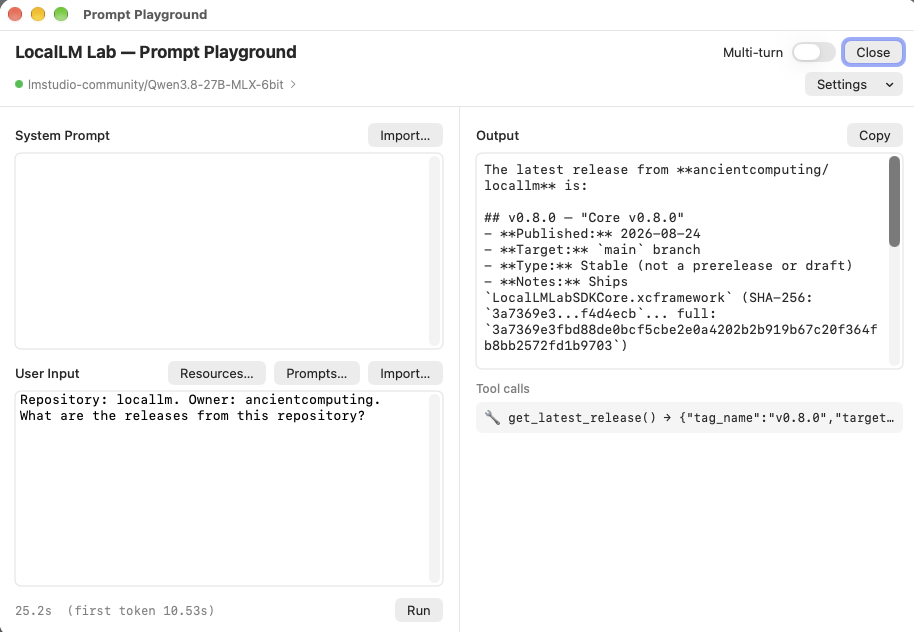
Single-shot vs. multi-turn
By default every Run is independent — no memory carried between runs — so you can vary the prompt or input freely and see how each change lands. Flip Multi-turn on to keep a conversation: the button becomes Send, replies accumulate, and New Conversation clears it. A multi-turn conversation is a live session on the helper; it holds the connectors, MCP tools, and security settings that were in effect when it started, so change those and start a new conversation to pick them up. Multi-turn and Benchmark are one or the other — while one is on, the other's switch is greyed out.
Today's date
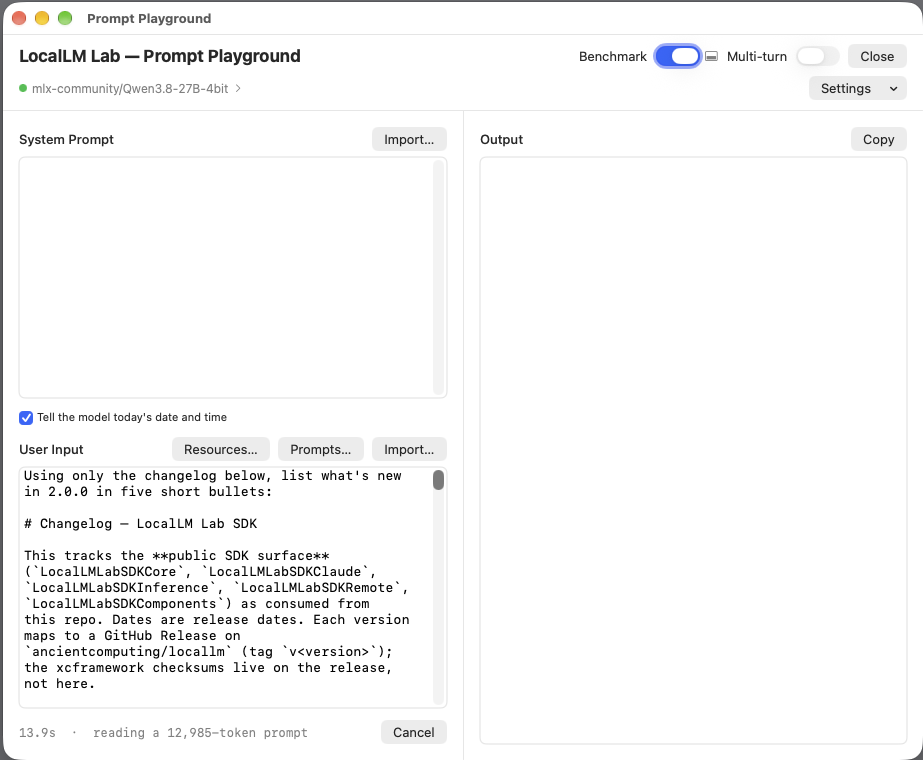
A model has no clock. Tell the model today's date and time, under the system prompt and on by default, sends the current date, time, and time zone with every message, just ahead of your input — so "what's due tomorrow?" works without a system prompt that tells the model to call a clock tool. That matters on a local model: every tool call is another full pass over the conversation (see Benchmark). It adds about 55 tokens. Turn it off when you want exact control over what the model sees.
Long prompts
A local model reads the whole prompt before it writes anything, and in a tool-using turn
it reads the whole conversation again on every call. When that takes more than a few
seconds, the stopwatch line says so — 1m 20s · reading a 48,210-token prompt (model
call 6) — until text starts to appear. Cancel stops a run at any
point, including while it's reading.
Two guards keep a local model from running away. A prompt longer than the model's context window, or one that wouldn't fit in the GPU memory left on this Mac, is refused up front with a message saying so. And a turn that keeps calling tools without answering stops after 16 model calls, with a message suggesting a more specific prompt, fewer tools, or a larger model.
Tools, resources, and confirmations
If you've enabled connectors or MCP tools, the model can call them mid-response. You'll see each call and its result inline. When Security is set to confirm a given call, a yes/no card appears and the turn waits for you. Resources… and Prompts… open pickers for MCP resources and prompt templates you've turned on — a resource is only attached to a turn if you pick it here.
Every run is also appended to a plain-text log at
~/Library/Logs/LocalLM Lab/dev.log — one timestamped entry per run with the model, system prompt, user
input, each tool call (its arguments and its output), and the model's answer or error.
Tool output is capped at 20,000 characters in the log (the model still gets the full
content); the cap is dev_log_tool_output_limit_chars in
localai-config.json. The file isn't cleared between launches.
Benchmark
Requires macOS 27. Speed and memory figures are for locally-run (MLX) models. Apple's on-device model and Private Cloud Compute get the timings, their token counts and an output rate (below).
Benchmark times one run in detail — the numbers people compare when they talk about local models: time to first token, prompt and generation speed, and memory. Think of it as one standing-start run on a fixed track rather than a test bench: one prompt, one turn, a fresh session every time, so two runs of the same prompt are directly comparable. It's single-turn only; with Multi-turn on, the stopwatch is still there, and that's all.
- Turn on the Benchmark switch next to Multi-turn. A panel opens under the output.
- Press Run. Runs are measured for as long as the switch is on. The panel steps aside to give the output room; a small button beside the switch brings it back.
- When the run finishes, the Benchmark Summary window opens with the results (or updates, if it's already open).
Measuring adds nothing to a run that isn't measured: with the switch off, nothing is collected.
| Number | What it means |
|---|---|
| Load | How long the run waited for the model's weights to load. Zero when the model was already in memory |
| TTFT | Time to the model's first output — text, or a tool call — counted from when the model was ready, so loading is never included |
| First answer text | Shown when it comes later than TTFT: the first words of the actual answer, after the model's reasoning or its tool calls |
| pp | Prompt processing: how many prompt tokens per second the model read |
| tg | Token generation: how many tokens per second it wrote. The number most people mean by "how fast is it" |
| Total | From the model being ready to the end of the run |
| Tokens | Prompt tokens read and tokens generated. In a tool-using turn these add up across every model call |
| Model calls | One, plus one for each round after the model calls tools. With tools, the summary splits the time between the model and the tools |
Apple's models. Apple's on-device model and Private Cloud Compute don't report pp or tg, so those show “—”. The run still reports the prompt and generated tokens, and next to the generated count an output rate measured on the wall clock after the first token. For Private Cloud Compute that rate includes the round-trip to Apple's servers, so it isn't your Mac's speed.
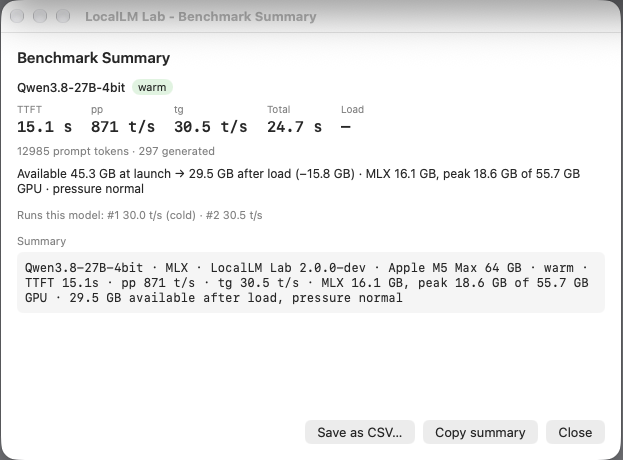
Cold or warm. A cold run loaded the model first — because it wasn't in memory, or because its speed helper or adapter changed. Its first answer also includes a one-time warm-up of the GPU, so run the prompt a second time for warm numbers and compare warm with warm.
Memory. The summary shows two views. This Mac's: memory available when the app started, after the model loaded, and at the end, plus memory pressure — available, as Activity Monitor counts it, not "free" (macOS keeps free memory low on purpose and uses the rest as cache it gives back on demand). And the model's own: what the model holds in memory, its peak during the run, the most the GPU is allowed to use on this Mac, and the model's size on disk. The model's own numbers are the precise ones; the Mac's view moves with every other app.
Reading the notes. The summary flags what can mislead: prompt speed from a short prompt (a few hundred tokens or less) is mostly fixed overhead, not the model; a cold run includes warm-up; "shared GPU" means another generation ran at the same time. And if a run used tools, remember that a local model reads the whole conversation again on every model call — one tool call can double a long prompt's reading time.
Saving results. In the Benchmark Summary window, Copy summary puts one line on the clipboard for a post or a note — the model, the app version, your Mac's chip and memory, cold or warm, and the key numbers. Save as CSV… saves the run as a row in a spreadsheet file, model in the first column. Choose an existing benchmark file to add a row to it — macOS asks whether to replace the file, but the earlier rows are kept and the new one is added. A file with different columns is left alone. The Summary window also lists the last few runs of the current model.
Comparing models or quantizations (say, the 4-, 6- and 8-bit versions of one model): use the same prompt, turn off connectors and MCP tools so every run is a single model call, run each model twice and keep the warm run, and save each to the same CSV. Generation speed falls roughly in step with the model's size on disk — each new token reads all of the weights — while prompt speed changes much less. For prompt speed itself, use a long prompt: Import… a document of several thousand words.
↑ TopAI Models
Requires macOS 27. On macOS 26 the on-device model is the only option and this panel is hidden.
This panel picks the default model — the one a request uses when it
doesn't name one. Apple's own LanguageModel protocol is what puts every
one of these behind a single API: Apple's on-device model, Private Cloud Compute, and
Claude (via Anthropic's ClaudeForFoundationModels package) all conform to
it directly. LocalLM Lab's SDK extends the same protocol rather than working around it
— open-weight (MLX) models and online providers get their own conformances too — so
every model answers through the exact same call, however it's actually hosted. This is
where you choose the default:
| Model | Runs | Needs |
|---|---|---|
| Apple On-Device | Entirely on your Mac | Nothing — no network, no key |
| Apple Private Cloud Compute | Apple's private-compute cloud | No key; a larger Apple model. The Mac App Store version only (why) |
| Anthropic Claude | Anthropic, via Foundation Models | An API key, entered on its row |
| Open-weight (MLX) | Entirely on your Mac, via MLX | Downloaded from Hugging Face — Add model… |
| Online provider | The provider's HTTP API | Configured under Providers with its own key |
A request to API Lab can still override the default per call, by naming its own model
explicitly — an explicit model always wins over whatever's selected here.
Prompt Playground doesn't have a separate per-run picker; it always runs whichever
model is currently the default, set on this panel. The built-in Claude model keeps its
key on its own row; each online provider (OpenAI, Anthropic Messages, OpenRouter, or
any OpenAI-compatible base URL) keeps its key separately in the Keychain — nothing is
shared between them.
Downloads are pinned and checked. Add model… fetches an open-weight
model at one exact Hugging Face version (recorded in mlx-pins.json, see
Where things live), and every file is checked against the hash Hugging Face reports for it
before it's kept. A file that doesn't match fails the download instead of being used.
Tuning a local model
Each open-weight (MLX) model row, and the built-in Apple Foundation Model row, has a sliders button (on an MLX row it sits next to the trash can). It opens the model's tuning sheet: every setting starts off, meaning the model's own default, and turning one on lets you override it. A small Tuned badge on the row shows which models have custom settings. The table below lists the settings for downloaded models; the Apple model's are described after it.
| Setting | What it does |
|---|---|
| Temperature, Top-p, Top-k, Min-p | How adventurous the sampling is. Temperature 0 is the most predictable. |
| Seed | The same seed and prompt give the same text every time (no effect at temperature 0). |
| Max output tokens | Stops the reply after this many tokens. Type a whole number from 1 to 1,000,000; it starts at 8192 when you switch it on. Off means the model's own limit. |
| Repetition penalty and window | Discourages tokens seen recently — the usual fix for a small model that loops. |
| Prefill chunk size | Changes time to first token on a long prompt, never the text. |
| Turn thinking off | Skips the model's <think>…</think> pass. Only models whose chat template has a thinking switch (Qwen3 and similar) respond to it; others ignore it. |
Settings are saved on this Mac and survive relaunching the app. They belong to the specific model version you downloaded — LocalLM Lab pins each model to an exact Hugging Face commit and remembers which one you tuned. If the model is later re-downloaded at a different version, your settings still apply, and the badge turns orange to say they were made on an older one. Remove a model and its settings are kept, ready if you add it back. A Reset to defaults button in the sheet clears them. Changes apply from the next run: a single-shot Run in Prompt Playground picks up a saved change immediately, but a multi-turn conversation already in progress keeps the settings it started with, so saving a model's tuning ends that open conversation and the next one starts with the new values. (KV-cache size and quantization aren't adjustable yet.)
Apple Foundation Model. The built-in on-device model has the same sliders button, with the settings Apple's model supports: Temperature, Top-p or Top-k (turning one on locks the other), Seed, and Max output tokens. A seed needs Top-k or Top-p turned on first, and it is best-effort here: the same seed usually gives the same text, but the first request after the app starts can differ, and a macOS update can change the model. Because macOS manages this model, its settings aren't tied to a version and carry across macOS updates. Repetition, thinking, and helper pairing don't apply to it.
Pairing a model with a helper
At the bottom of a local model's tuning sheet is a Pairing section. Two kinds of companion can be paired with a model; each has its own on/off switch, so you can run the same prompt with and without it and compare. A companion is kept when its switch is off.
| Speed helper | Specialization patch (adapter) | |
|---|---|---|
| What it is | A much smaller model from the same family, which drafts ahead so the big model can check several tokens at a time. | A LoRA adapter — a small file of adjustments that changes how the model writes, without a second full model. |
| What it does | May make replies faster. Usually the same text, but it can differ slightly. | Changes the model's output — everywhere the model is used: Prompt Playground, API Lab and the command line. |
| Memory | Loads next to the model — about the helper's size extra. | Loads its own copy of the model while it is in use — about the model's size extra. |
| When first added | Switched on. | Switched on too — remember it changes the output, and switch it off to compare. |
Setting one up. Press Choose…. The sheet first lists what you've already downloaded — for a speed helper, models of the same family that are smaller than yours; for an adapter, your downloaded adapters, each showing what it says it was trained for (in orange if that's a different model) — and Use on one skips the download. Or type a Hugging Face repo id and press Get: it's downloaded (pinned to an exact version, like any model). Either way, a test prompt runs with the pair applied. Only a pair that actually runs is added; if it doesn't, you see the real error and nothing is switched on. There is no list of approved pairs — you type what you want to try. Nothing is ever downloaded on its own: a companion that's missing (deleted, or named by a profile from another Mac) is skipped with a warning until you download it again.
Try it in four steps.
- Make sure the model you want to speed up or specialise is downloaded (Add model… at the bottom of the model list).
- Press its sliders button, scroll to Pairing, and press Choose… next to Speed helper or Specialization patch.
- Pick one you've already downloaded with Use, or paste a full repo id (for example
mlx-community/Qwen3-0.6B-4bit) and press Get. A download shows its progress; then you'll see "Checking that … runs with it…". - When it says Paired, use the switch to compare runs with and without it, then Save.
What we've tested. The pairs that ran end to end, with full repo ids you can
paste, are in the model list's speed helpers
and adapters. The fastest to try: mlx-community/Qwen3-4B-4bit with the speed helper
mlx-community/Qwen3-0.6B-4bit, about 17–25% faster on a 24 GB Mac. Everything else is
for you to try.
Choosing a companion for a model that isn't in the list. These are rules of thumb, not tested recommendations.
- Speed helper: the smallest sibling of the same model family and quantization, usually in the same Hugging Face namespace (
mlx-community/for most). The helpers we tested were 0.5–0.6 billion parameters, against models of 1.5–4 billion. It has to share the model's tokenizer, so a helper from a different family may fail the test prompt or give poor results (Qwen2.5 and Qwen3 happen to share a vocabulary, which is why that pair works). - Adapter: a LoRA adapter repo on Hugging Face containing
adapter_config.jsonandadapters.safetensors, trained for the same base model and quantization you're pairing it with. An adapter built for a different setup may fail to load or give poor results — the test prompt is how you find out.
If it doesn't work, the message you see is the real one: "…is a full model, not a LoRA adapter" or "…is a LoRA adapter, not a model" means the repo is the wrong kind for the slot; "This adapter doesn't fit …" means the adapter was made for a different model or size (it tells you which — an adapter only works with the exact model it was trained on); "…couldn't be accessed. It may not exist…" usually means a mistyped repo id; "the helper model was never loaded" means the pair is too big for your Mac's memory; any other error from loading or running the pair is shown as-is, and nothing is switched on.
What to expect. A speed helper has to share the model's tokenizer — in practice the same family — and be much smaller than it. An adapter has to match the architecture and quantization it was trained for. Speed depends on your Mac and the pair, so measure yours; and judge speed with a release build of the app (a development build can show no gain, or a loss). The tokens-guessed-ahead box defaults to 2, the best value we measured; larger is usually slower. If the model and its helper together would use more than about 70% of your Mac's memory, the SDK skips the helper, and the sheet warns you. A model with a companion switched on shows a purple Paired chip in the list (orange if the companion's files are missing). Remove pairing drops it; for an adapter there's also an option to delete its files. Adapters are listed under the models but can't be picked as a default — they only work paired with a model.
Advanced → Tool result size (Compact / Balanced / Full) controls how much of a single MCP tool result the model keeps before it's trimmed. It's sized to the model automatically; reach for it only if a small model is giving incomplete answers on large tool results. Ordinary file reads aren't affected.
How local models work: memory, safe downloads and tool calling →
Which MLX models to download for your Mac →
↑ TopConnectors
Connectors give the model real information from your Mac instead of only what it already knows. Every connector is off by default and turned on individually.
| Connector | Gives the model | Notes |
|---|---|---|
| 🕐 System Clock | The current date and time | Local |
| 📁 Filesystem | Files in one folder you choose | Local. Read, write and edit inside the folder at the default level; Read-only if you set the Security settings for Filesystem to Read-only |
| 🌤️ Weather | Current conditions for a named place | Leaves this Mac — the query goes to Open-Meteo. Weather data by Open-Meteo.com (CC BY 4.0) |
| 📅 Calendar | Upcoming events; can add and change events | Asks for macOS Calendar access |
| ✅ Reminders | Upcoming reminders; can add and change reminders | Asks for macOS Reminders access |
| 👤 Contacts | Search and list contacts; can add and change them | Asks for macOS Contacts access |
| 📍 Location | This Mac's current location, once | Asks for macOS Location access |
Two rules hold across all of them. What the model may do with each connector is a level in Security — Read-only, Changes (add and modify; the default) or Full (also delete) — so by default it can add and modify but not delete. And everything stays on your Mac except Weather, which is clearly flagged.
For Calendar, Reminders, Contacts, and Location, turning the connector on for the first time triggers the matching macOS permission prompt. If you previously denied one, macOS won't ask again — the panel shows an "Open System Settings" link for that case.
Filesystem needs a folder: click Grant folder… and pick one. The model can read files inside that folder and nowhere else. Edit descriptions on any connector lets you rewrite what the model is told each tool does — useful when tuning a small model.
What each connector does, with example prompts →
↑ TopSecurity
By default the model can use every tool you've enabled without asking. The Security panel is where you tighten that — per connector and per MCP server. It applies to both Prompt Playground and API Lab.
Per-connector level
Each connector that can change data gets a level:
- Read-only — the model can look things up, nothing more.
- Changes — read, plus create and edit. The default.
- Full — read, create, edit, and delete.
Confirm each change (Playground) adds a yes/no prompt before any create / edit / delete call from that connector.
Per-MCP-server
An MCP server's tools are written by its operator — LocalLM Lab can't vouch for them. For a server you don't fully trust, turn on Confirm each tool call. Once a call is confirmed you can mark that tool "always allow" so the same server still runs it without prompting. A separate toggle controls whether the model may read that server's resources — off by default, because resources are where injected instructions can enter.
The cautious end persists; the permissive end doesn't. A Full level, and any "allow all" choice, resets to the cautious setting when LocalLM Lab restarts. Loading a configuration profile resets them the same way.
MCP Servers
The Model Context Protocol is a standard way for AI apps to reach real tools and data. This panel connects production MCP servers straight to your model and lets you watch the protocol work — capability negotiation, tool discovery, OAuth, live calls.
Adding a server
- Paste the server's URL and a display name.
- Pick an auth type:
- None — no sign-in, or the server discovers OAuth itself on the first call.
- Personal Access Token — paste a token the server issued (e.g. GitHub).
- OAuth (manual client) — for servers with no dynamic registration; paste a Client ID from the server's developer console (e.g. Slack).
- Click Add. The server connects, negotiates, and lists its tools.
Adding a server is itself the consent step — you're vouching for it. Tokens are stored in the Keychain, never in a file.
Under a connected server's status, the MCP badge shows the protocol
revision the connection negotiated — 2026-07-28 for servers on the current
revision, an earlier date for older ones.
Choosing tools
Every tool starts disabled — a real server can expose 50+ tools and the on-device model has a small context budget, so you opt in to the handful you need. The context budget line shows the running token cost of what's enabled. Resources work the same way and are enabled per resource.
Connect, disconnect, remove
| Action | Effect |
|---|---|
| Disconnect | Drops the live connection; keeps the server, your tool picks, and its token. Reconnect restores everything. |
| Remove | Deletes the server entirely and clears its Keychain token. Re-adding it is a fresh start — tools and resources back to disabled, sign in again. |
| On relaunch | Servers reappear disconnected with your picks intact. Reconnect when you want them. |
Copy Diagnostics puts a redacted connect/negotiate/authorize trace on the clipboard for a bug report. Save As exports a connected server's tool and resource list to a text file.
Live updates
New in 2.0. Some servers tell LocalLM Lab when their tools, prompts, or resources change. For those, the server's row shows Live under the MCP badge, and the list here updates by itself while you're connected — no Reconnect needed. Newly added tools still arrive disabled. Hover over the label for what the server keeps current.
| Label | Meaning |
|---|---|
| Live | Changes on the server appear here automatically. |
| Reconnecting… | The update stream dropped; it's retrying on its own. |
| Live updates off | The server declined, or sign-in expired; hover for the reason. Updates resume after you sign in again or Reconnect. |
| (nothing) | The server doesn't send change notifications. Reconnect to pick up changes. |
While a server is disconnected nothing is watched — Reconnect always fetches the server's current tool list, so changes made in the meantime are never missed.
Every server that's been tested, and how to connect each →
Building an MCP server? Test it against LocalLM Lab →
Configuration Profiles
A configuration profile is a saved snapshot you can switch between — built for one specific job: figuring out which combination of MCP tools and tool descriptions a small model needs to reliably complete a task. Set up a combination, save it, try another, and flip back to compare.
What's in a profile
| Saved | Not saved |
|---|---|
| Which connectors are on | The default model and online providers |
| Which MCP servers, and which of their tools / resources | The Filesystem folder |
| Your tool-description overrides | API Lab (its state is always off at launch) |
| The tool-result size preset | Any API keys or tokens (those stay in the Keychain) |
| The Security policy (cautious form) | |
| The tuning and speed-helper / adapter pairings of your local (MLX) models |
Which model is your default, and the online-provider setup, are deliberately left out — loading a profile never switches the model you're using. What a profile does carry is each local model's tuning, so a tool combination and the model settings that suit it travel together. Secrets are never written to the file, so a profile is safe to keep in a folder or a repo; it references Keychain items that already exist on this Mac.
Saving
File → Save Configuration As… (⇧⌘S). A profile
lists every local model you have, with its tuning and pairings — or "defaults" for a
model you haven't customised, so loading the profile later puts that model back on its defaults
too.
Profiles
default to the same folder as the app's own config
(~/Library/Application Support/LocalLM Lab/); the file name becomes the
profile name.
Loading
File → Load Configuration… (⇧⌘O). Loading a profile:
- Is refused while a Prompt Playground run or an API Lab request is in flight — finish or cancel it first.
- Replaces the saved settings; leaves your default model, providers, and Filesystem folder untouched.
- Sets the tuning and pairings of each local model the profile lists — a model the profile lists as "defaults" is reset, a model it doesn't list is left alone. Tuning saved on a different version of a model still applies. A profile that names a model, or a paired helper or adapter, you haven't downloaded keeps it ready for when you add it; nothing is ever downloaded automatically.
- Resets Security to its cautious baseline (as if you'd relaunched).
- Turns API Lab off.
- Disconnects every MCP server and relists them disconnected, with the profile's tool and resource picks restored. Reconnect each when you're ready; a server you'd already signed into reconnects without a new sign-in.
- Closes the settings windows and opens a "needs setup" summary — it lists only what needs your attention: a Filesystem folder to re-grant, a macOS permission that will be asked for, or an MCP server that needs a fresh sign-in. It also summarises the models ("3 customised, 4 set to defaults, 1 not installed"), lists any paired helper or adapter that isn't downloaded, and offers Add Missing…: it opens the Add model sheet pre-filled for a missing model, or the model's tuning sheet with the helper sheet pre-filled for a missing companion. You still press Get yourself.
- Opens Prompt Playground.
API Lab
Not in the Mac App Store version of LocalLM Lab.
API Lab turns your Mac into an AI server, with the selected model running inference behind an OpenAI-compatible API. Point any tool or script written for the OpenAI API at your Mac instead of a paid cloud endpoint. It's a zero-cost way to learn how AI app development actually works.
Multi-turn conversations sent as OpenAI-style messages arrays are an
approximation, not full multi-turn parity: Foundation Models takes instructions plus
one prompt string, so system messages become instructions and the rest are flattened
into a single prompt rather than replayed as a live, stateful session the way Prompt
Playground's own Multi-turn mode works.
Requests to a local (MLX) model use that model's saved tuning from AI Models — including a
paired speed helper or adapter — see Tuning a local model. A
request's own temperature or max_tokens overrides the saved value
for that call.
- Turn On. A localhost endpoint starts on the first free port from 8765.
- Copy the base URL and the token (hidden for safety; Copy fetches it from the Keychain). Regenerate issues a new one.
- Optionally turn on Allow LAN access to reach it from another machine over HTTPS — this exposes the endpoint to your whole network, so anyone with the token can use it. Download the self-signed certificate and trust it on the client. Localhost doesn't need the certificate.
- Turn on Log incoming API calls to append every request to
~/Library/Application Support/LocalLM Lab/api-requests.log— method, path, status, duration, and full bodies.
API Lab is off every time the app launches, and Load Configuration turns it off too. API Lab uses the same per-connector levels as Prompt Playground (see Security) but has no per-call confirmation, so a Full level — which lets a network client trigger delete-capable connector tools — is in-memory only and never persists.
Sample clients, including a Python chatbot UI, are in the examples repo.
↑ TopCLI & SDK
localai-cli is a small binary you drive from a script:
write a JSON request to stdin, read a JSON response from stdout. No server, no HTTP. It's
config-aware — the connectors and MCP tools you've granted in the app stay the ceiling on
what a request can use. Interface and examples →
The toolkit works with the downloadable app, not the Mac App Store version.
The SDK is for building your own native macOS app on the same on-device model + MCP client the app uses. SDK guide →
↑ TopWhere things live
| Path | What |
|---|---|
~/Library/Application Support/LocalLM Lab/app-config.json | All non-secret settings: connectors, MCP servers, security, preset, per-model tuning |
~/Library/Application Support/LocalLM Lab/mlx-pins.json | The exact Hugging Face version each downloaded model is pinned to |
~/.cache/huggingface/hub/ | Downloaded open-weight (MLX) models, one models--<owner>--<name> folder each — the standard Hugging Face cache, shared with other Hugging Face tools |
~/Library/Application Support/LocalLM Lab/*.json (others) | Configuration profiles you save |
| Keychain | Anthropic key, per-provider keys, MCP OAuth / access tokens, the API Lab token |
~/Library/Logs/LocalLM Lab/dev.log | One entry per Prompt Playground run |
~/Library/Logs/LocalLM Lab/helper.log | Diagnostics from the background helper that runs the models (pairing notes, crashes). Kept to about 1 MB, plus one older copy |
~/Library/Application Support/LocalLM Lab/api-requests.log | API Lab request log (when logging is on) |
Mac App Store version
The Mac App Store version runs in Apple's App Sandbox, so it keeps
everything inside its own container, ~/Library/Containers/ai.thisbrain.locallmlab/Data/
(shortened to …/Data/ below). It doesn't share settings, keys or downloaded models
with the downloadable app, and deleting it from Applications removes the container.
| Path | What |
|---|---|
…/Data/Library/Caches/huggingface/hub/ | Downloaded open-weight (MLX) models, one models--<owner>--<name> folder each. A Caches folder, so it's normally left out of Time Machine backups. Remove a model with its trash button in AI Models |
…/Data/Library/Application Support/LocalLM Lab/app-config.json | All non-secret settings |
…/Data/Library/Application Support/LocalLM Lab/mlx-pins.json | The exact Hugging Face version each downloaded model is pinned to |
…/Data/Library/Logs/LocalLM Lab/ | dev.log and helper.log, as above |
| Keychain | Its own items, named ai.thisbrain.locallmlab.…: the Anthropic key, per-provider keys, MCP OAuth / access tokens |
Finder can open these folders. macOS protects other apps' containers, so a Terminal command or script may be refused unless it has Full Disk Access.
macOS permissions (Calendar, Reminders, Contacts, Location) are held by macOS itself, in System Settings → Privacy & Security — not by LocalLM Lab. The app can only ask; granting, revoking, and re-granting happen there.
↑ TopTroubleshooting
"LocalLM Lab isn't running" from a connector tool
The background helper reaches connector data through the app. Make sure LocalLM Lab is open, then try again.
A connector tool says access was denied
macOS recorded a "no" for that permission and won't prompt again. Open System Settings → Privacy & Security, find the category (e.g. Calendars), and enable LocalLM Lab.
"Grant Calendar access…" does nothing
You're running an unsigned build with no usage description — macOS silently refuses. Use the signed release from the home page.
An MCP server's resources come back unchecked after reconnecting
Newly discovered resources default to disabled for safety; your saved picks are re-applied once the server finishes connecting. If they don't stick, disconnect and reconnect once more.
A Security setting reverted on its own
Expected — Full levels and "allow all" choices don't survive a relaunch or a configuration Load. Set them again for the session.
A run sits with no output for a long time
With a local model, look at the stopwatch line: "reading a N-token prompt" means the model is still reading. Long prompts take a while, and a tool-using turn re-reads the whole conversation on every model call, so it gets slower as tool results pile up. Press Cancel to stop it. A model that keeps calling tools is stopped after 16 model calls anyway; try a more specific prompt, fewer tools, or a larger model. If your system prompt tells the model to call a clock tool for the date, remove that line and leave Tell the model today's date and time on instead.
Reporting a bug — what to include
Nothing here is sent anywhere automatically; you attach it yourself when you file an issue.
- An MCP problem (a server won't connect, an auth flow fails, a tool call errors): open the MCP Servers panel and click Copy Diagnostics. It puts a redacted trace of the recent connect / negotiate / authorize activity on the clipboard — no tokens, no tool results, just the protocol milestones and errors. Paste that into the issue.
-
A model / prompt problem (wrong output, a run that hangs or fails):
the last run is at the bottom of
~/Library/Logs/LocalLM Lab/dev.log— model, system prompt, user input, tool calls and their output, and the answer, one timestamped entry per run. Copy the relevant entry. (It records your prompts, tool results and the model's output, so review it before sharing.) If the app itself misbehaved or a run failed outright, also attach~/Library/Logs/LocalLM Lab/helper.log— the background helper's diagnostics (pairing notes, provider errors, crashes), which isn't meant to contain your prompts. -
An API Lab problem: turn on Log incoming API calls,
reproduce it, and grab the matching lines from
~/Library/Application Support/LocalLM Lab/api-requests.log.
For a stubborn MCP issue on a release build, you can turn on verbose protocol logging without a rebuild — run this in Terminal, relaunch LocalLM Lab, reproduce, then Copy Diagnostics again:
defaults write ai.thisbrain.locallmlab.chooser MCPLogLevel debug
Set it back to info (or delete the key) afterwards.