 ChatAgain
 user guide
For someone who has just installed ChatAgain. Each part is short. For a quick fix, or to reach us, see Support.
- Before you start
- Your first message
- Your calendar, reminders, contacts and location
- Files, pictures and web pages
- Choosing a folder
- Adding tool sources
- Chats
- For IT: audit logs
- Limits and messages
- Deleting your data
- Still stuck?
1. Before you start
ChatAgain needs a Mac with Apple silicon, macOS 27 or later, in a region where Apple offers Private Cloud Compute. There is nothing to turn on first.
2. Your first message
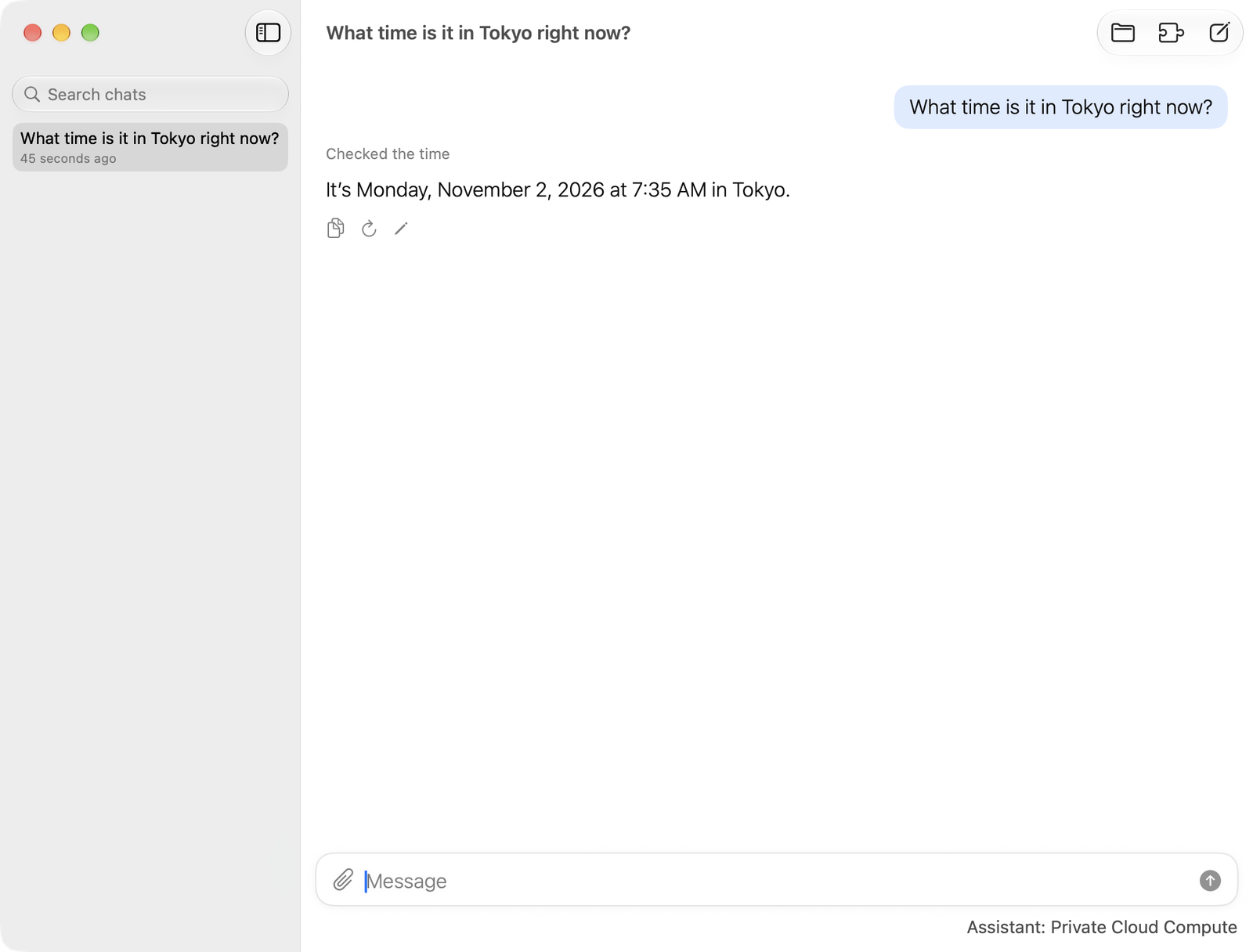
Open ChatAgain and type a message. There is no sign-up and no model to download. Try "What time is it in Tokyo?"
3. Your calendar, reminders, contacts and location
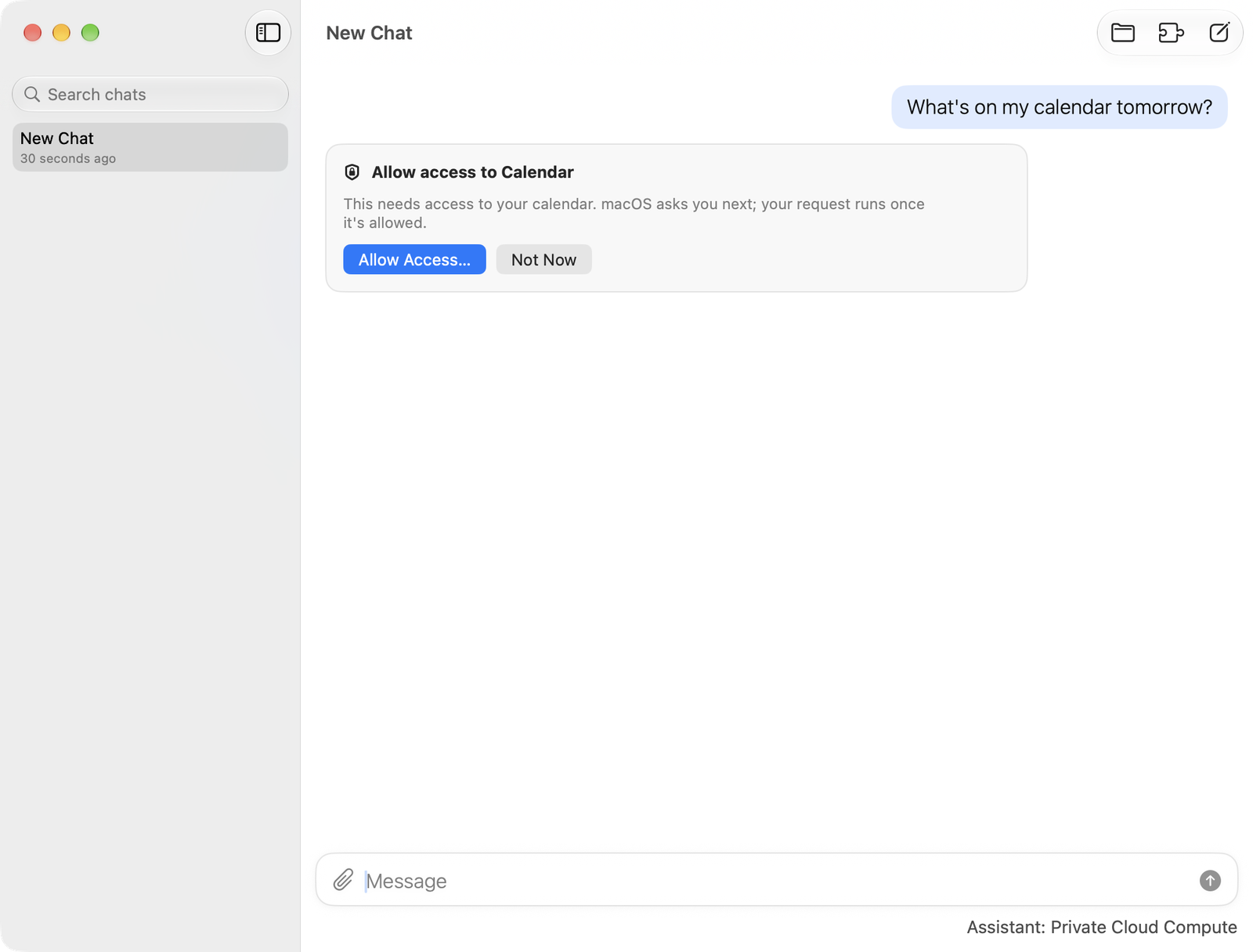
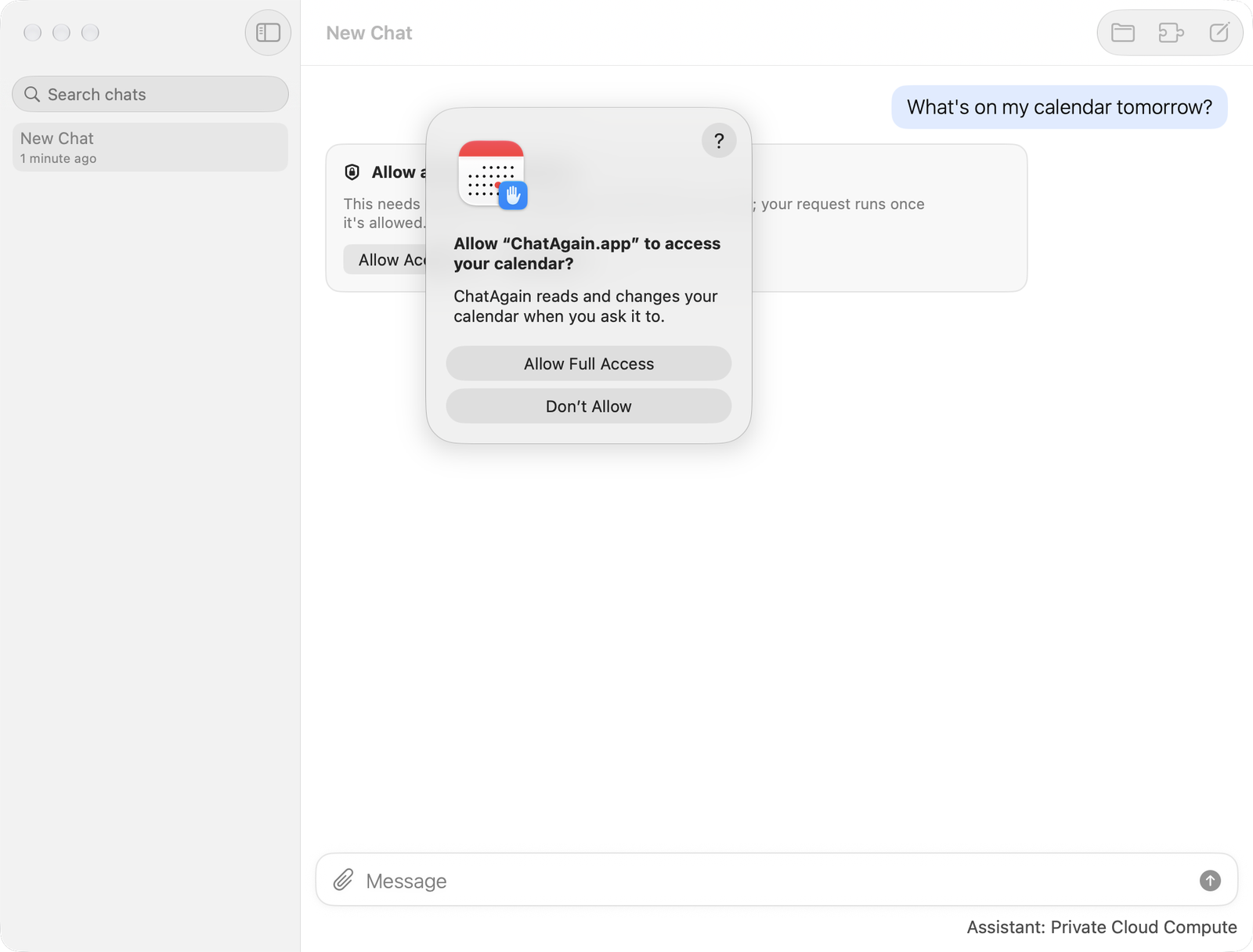
The first time a message needs one of these, ChatAgain shows a card in the chat, and then macOS asks for your permission. Choose Not Now on the card to skip it. ChatAgain uses these only when a question needs them.
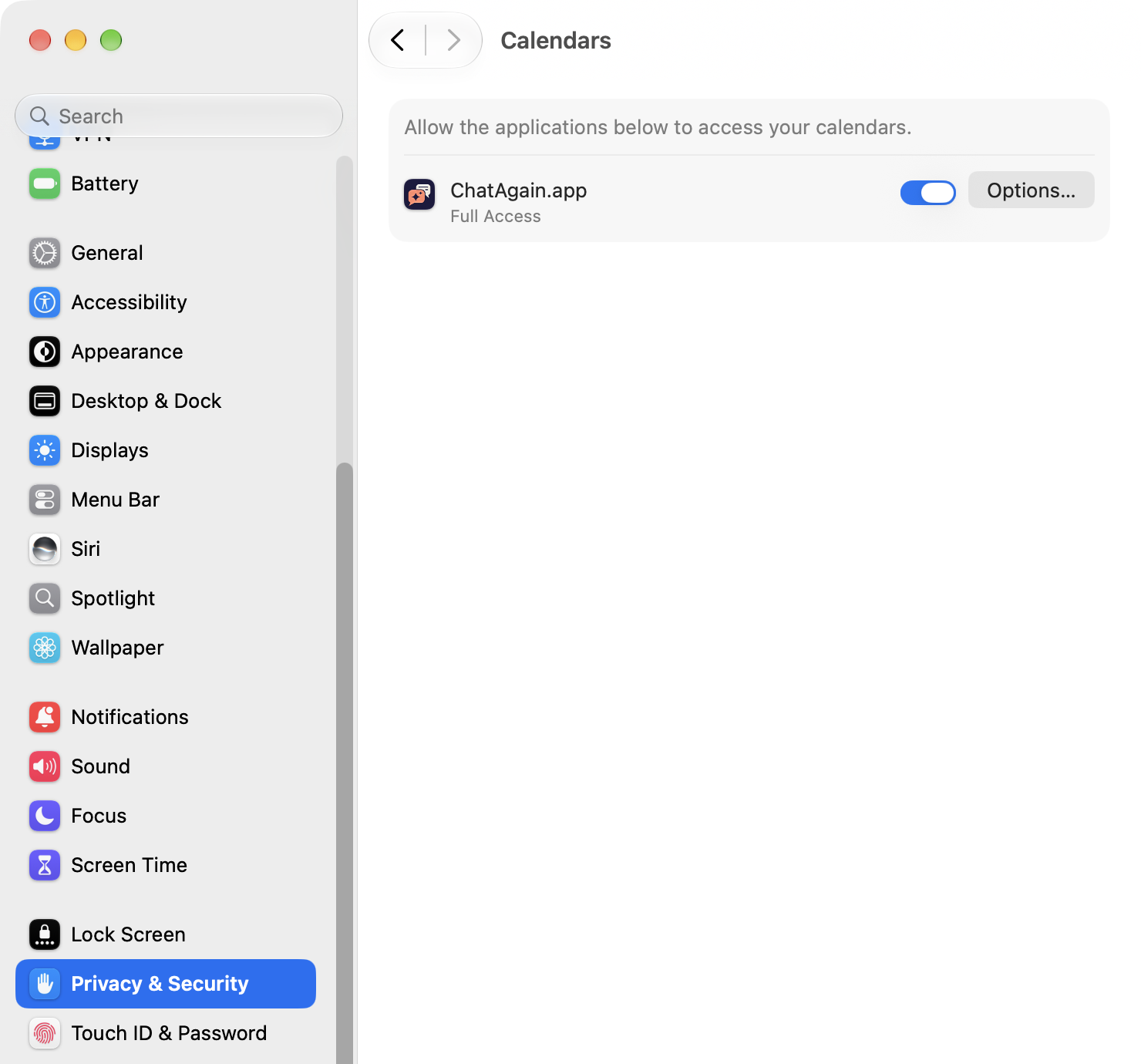
To turn a permission off later, open System Settings > Privacy & Security, choose Calendars (or Reminders, Contacts or Location Services), and switch ChatAgain off.
4. Files, pictures and web pages
Attach with the paperclip, by dragging into the window, or by pasting. ChatAgain reads pictures and screenshots, PDF, Word (.docx), plain text, Markdown, CSV, TSV, JSON, HTML and RTF. Pictures inside a Word file are left out. It cannot read older Word files (.doc), Excel, PowerPoint, Pages, Numbers or Keynote yet. Attaching one shows a note saying so. Save it as a PDF, or as CSV for a spreadsheet, and attach that.
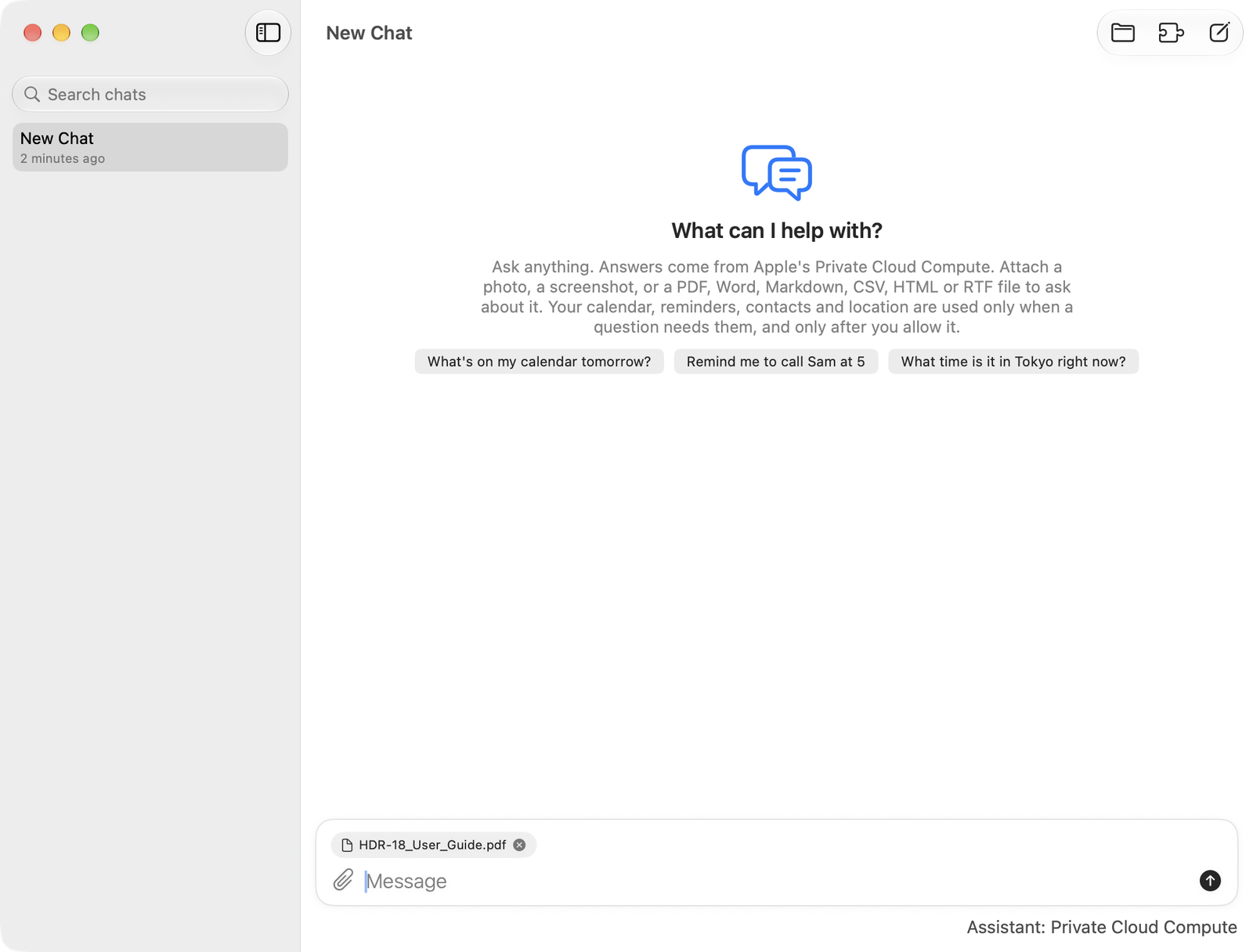
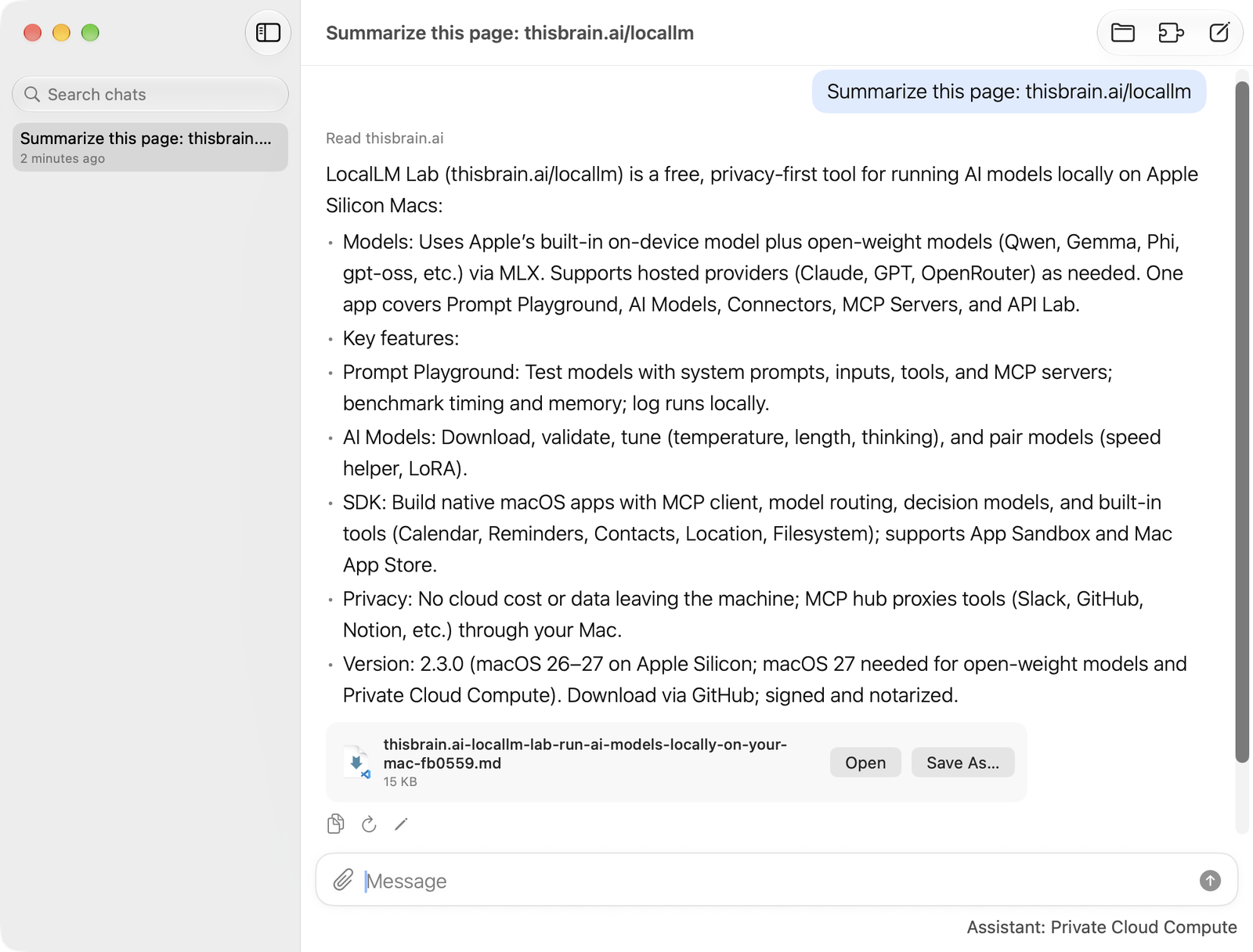
To ask about a web page, paste its address and ask. ChatAgain reads that page and answers from what it finds. It does not search the web on its own.
5. Choosing a folder
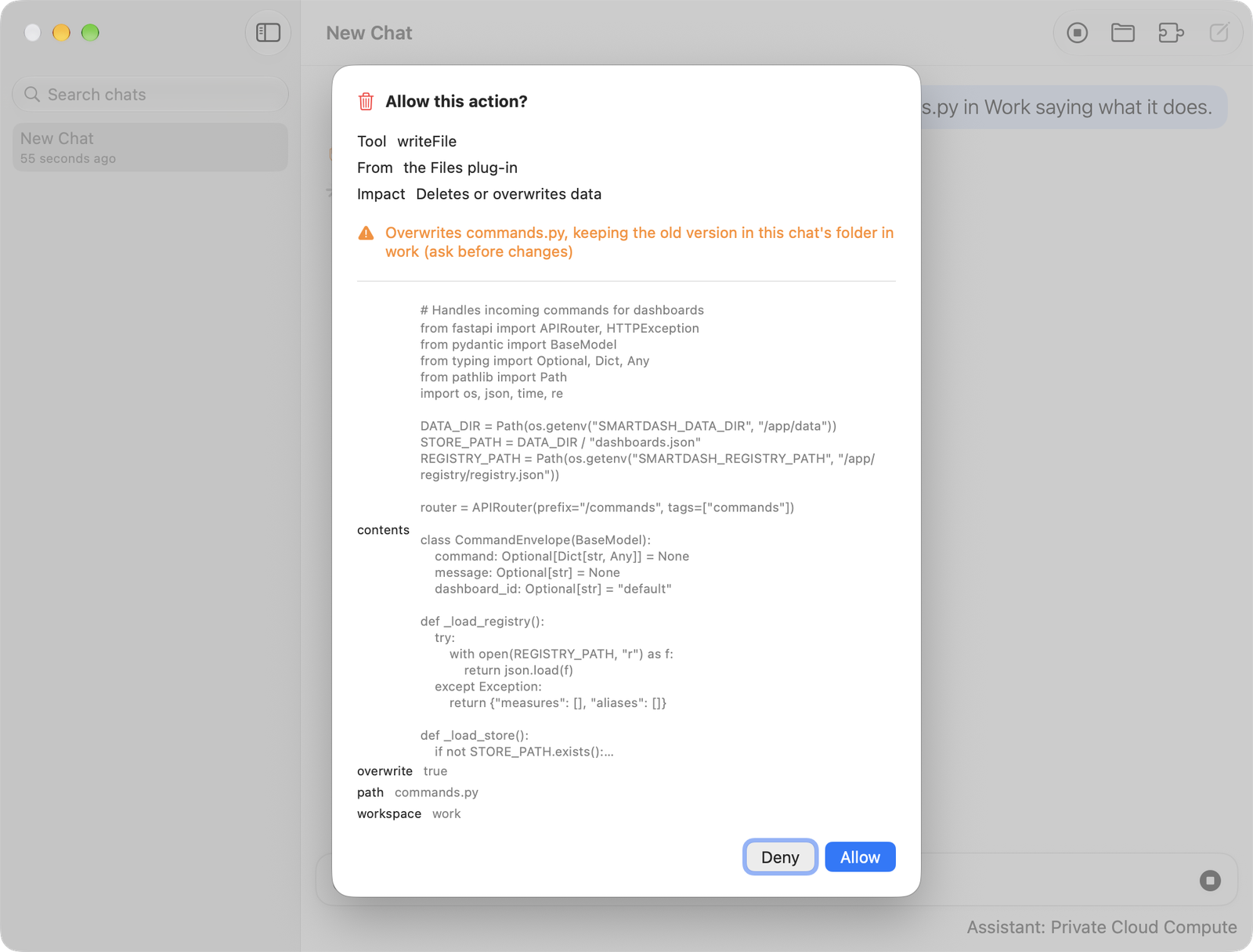
You pick the folder ChatAgain can see. Click the folder button in the toolbar, click Add Workspace…, and pick a folder.
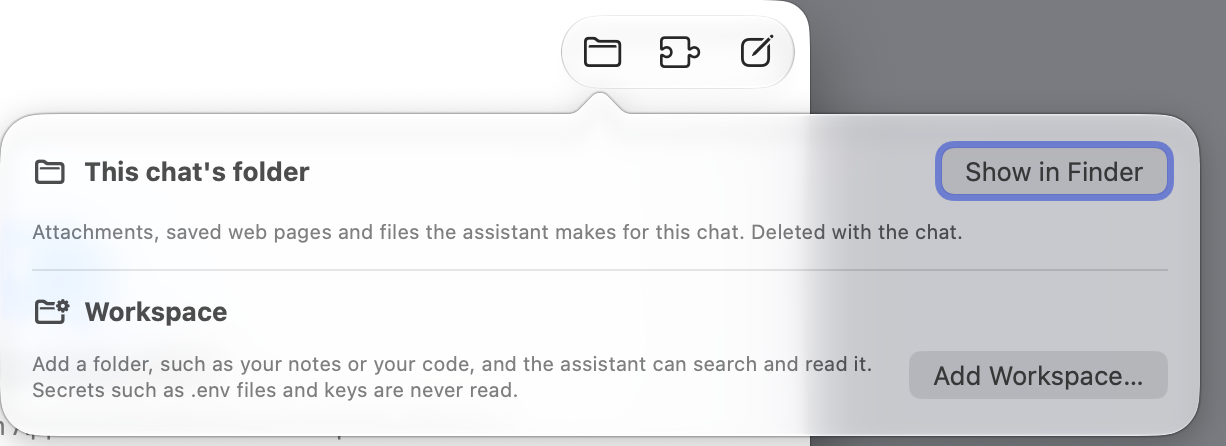
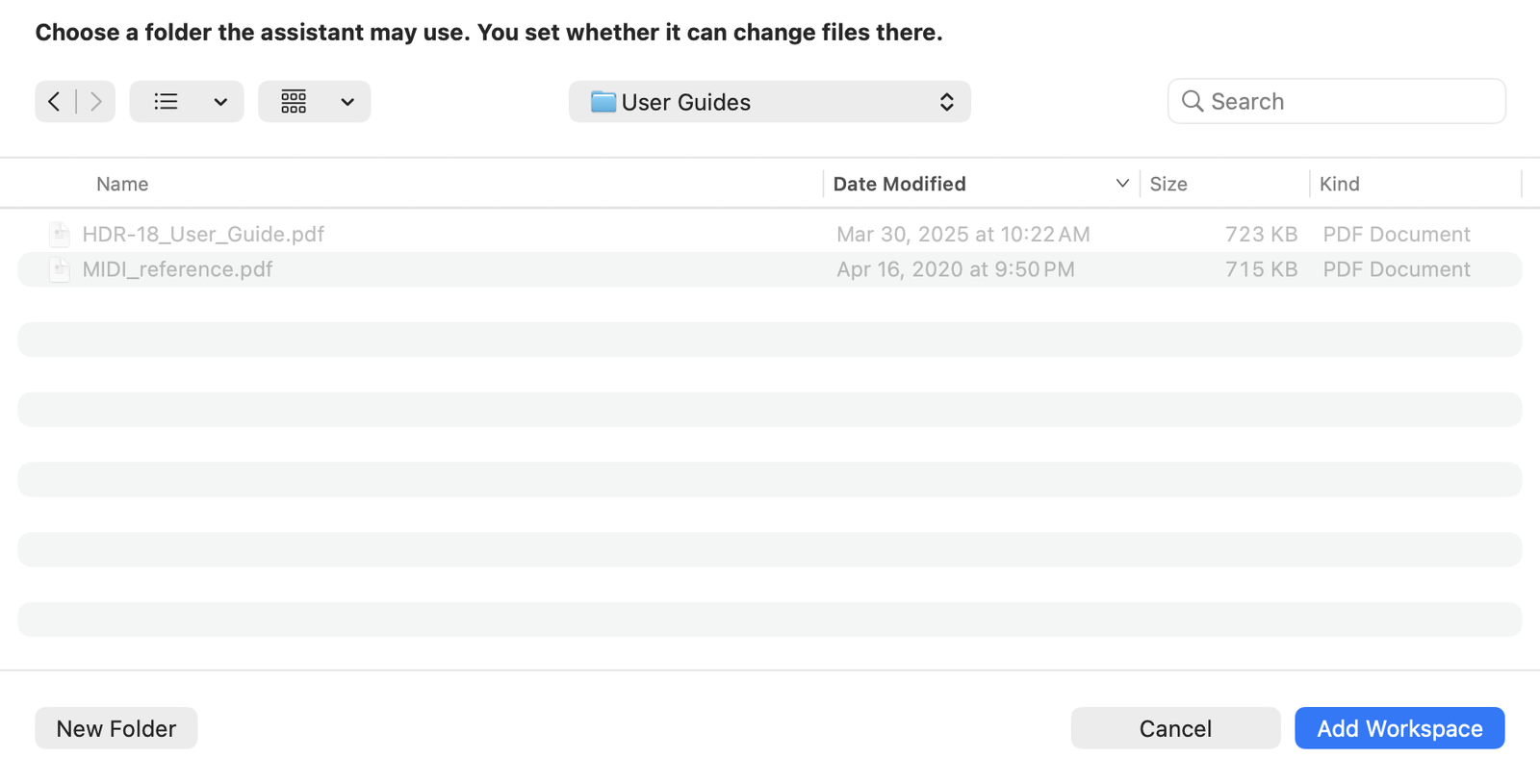
- ChatAgain can list, search and read what is in the folder.
- It can also edit your files and create new ones, after you say yes.
- To stop using a folder, choose Remove in the same menu. Your files are not touched.
6. Adding tool sources
A tool source is a server that gives ChatAgain extra tools, using the Model Context Protocol (MCP). It can be on the internet or running on your own Mac. There are two ways to add one: a quick card in the chat, or the Tool Sources window, which also manages the sources you have. Either way, the source ends up in the same list.
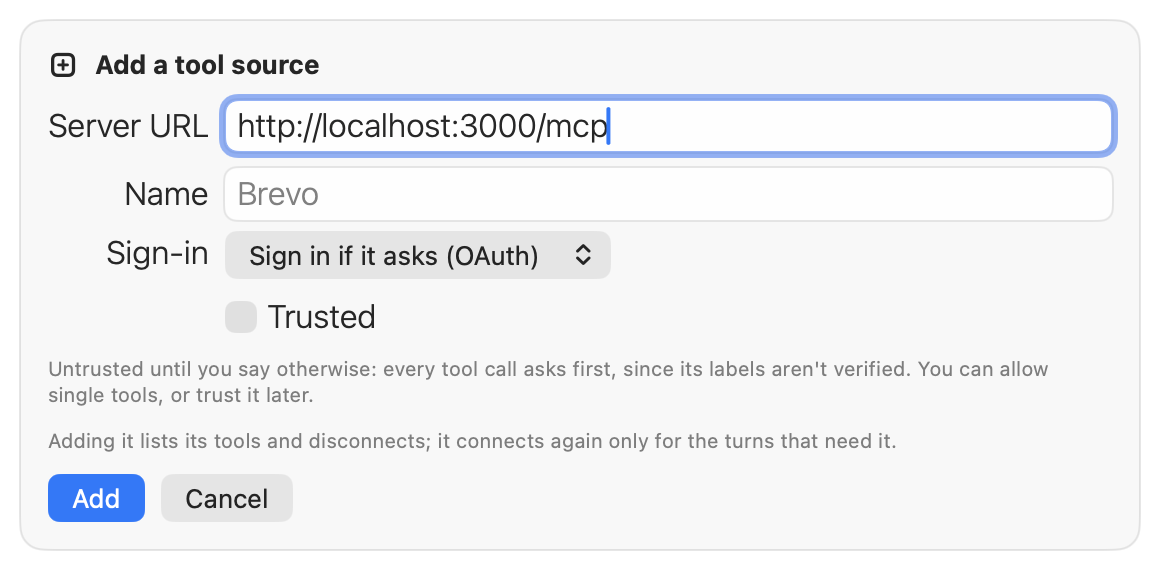
For a server on your own Mac, the address is something like http://localhost:3000/mcp. ChatAgain uses servers that are already running. It does not start programs for you.
Quick add: Chat > Add Tool Source…
Choose Chat > Add Tool Source… (Shift-Command-K). A card opens in the chat:
- Enter the server's web address and, if you like, a name for it.
- Under Sign-in, leave Sign in if it asks for most servers: your browser opens if the server wants you to sign in. Choose Access token for a server that gives you a token to paste instead.
- Tick Trusted only for a server you know, such as an official one. A trusted source's tools run without asking, except tools that say they can delete. Untrusted, every tool call checks with you first. You can change this later.
- Click Add. A note then says how many tools the source has and, going by its own labels, how many will run without asking.
The same card appears when you write a message about adding a server, such as "Add the Deepwiki MCP server: https://mcp.deepwiki.com/mcp". If you meant to ask the assistant something instead, click Send as a Message.
The Tool Sources window
Click Tool Sources (the puzzle piece) in the toolbar, or choose Chat > Tool Sources…. Add a server at the top adds a source like the card does, and handles two cases the card does not:
- A JSON setup block. If the server's instructions give you one (an
mcpServersblock), paste it into the address field and the address fills in. A setup that starts a program on your Mac cannot be used as it is. ChatAgain says so. - An OAuth app you registered yourself. A few servers don't let apps sign in on their own. Choose OAuth (manual client) and enter the client ID from the server's developer settings.
Below it are the sources you have. Open one to trust it or not, choose whether it checks with you before a tool runs, turn single tools off, check its connection, or remove it.
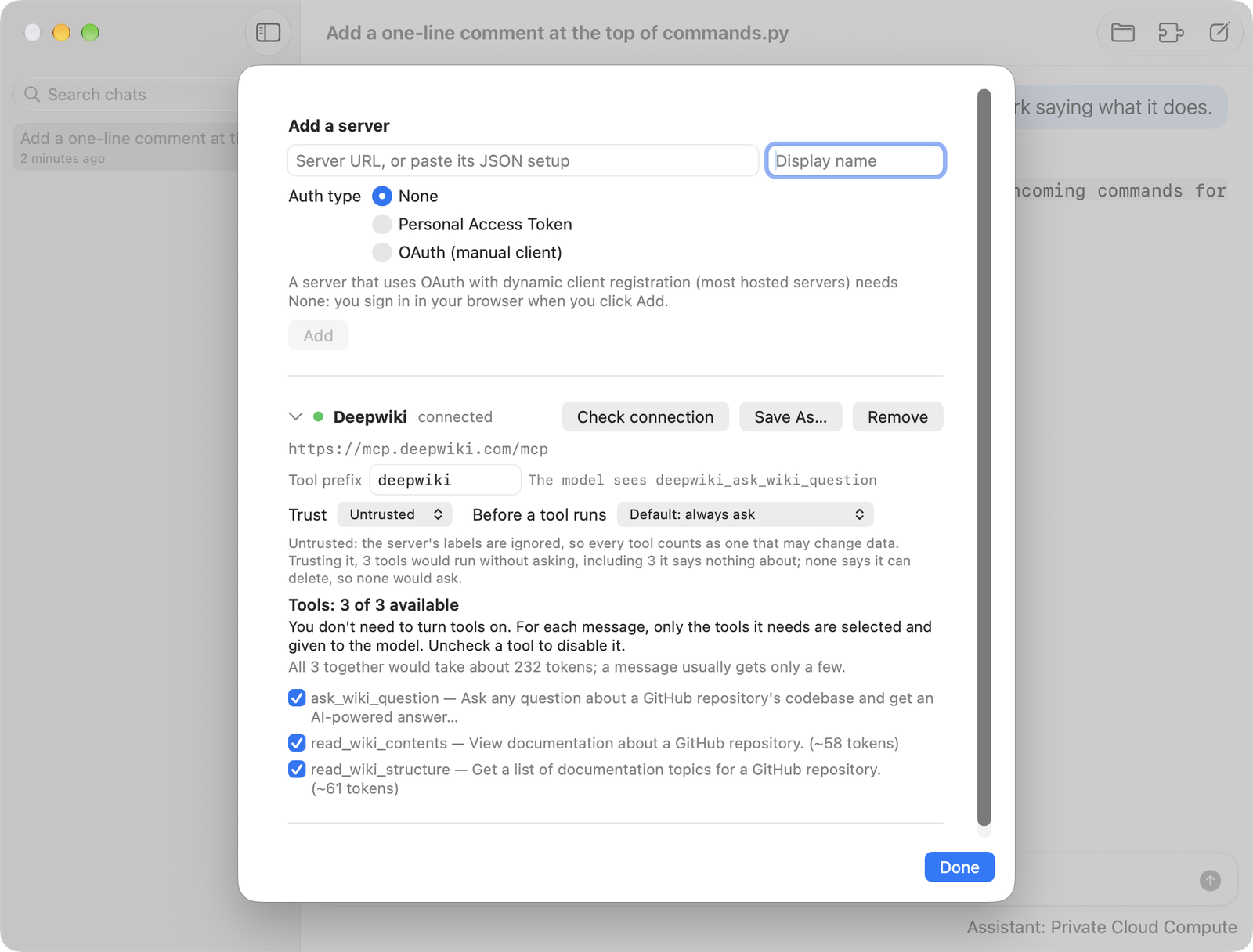
If a source stops working, open Tool Sources and click Check connection. It tests the address and asks you to sign in again if it needs to.
When it checks with you
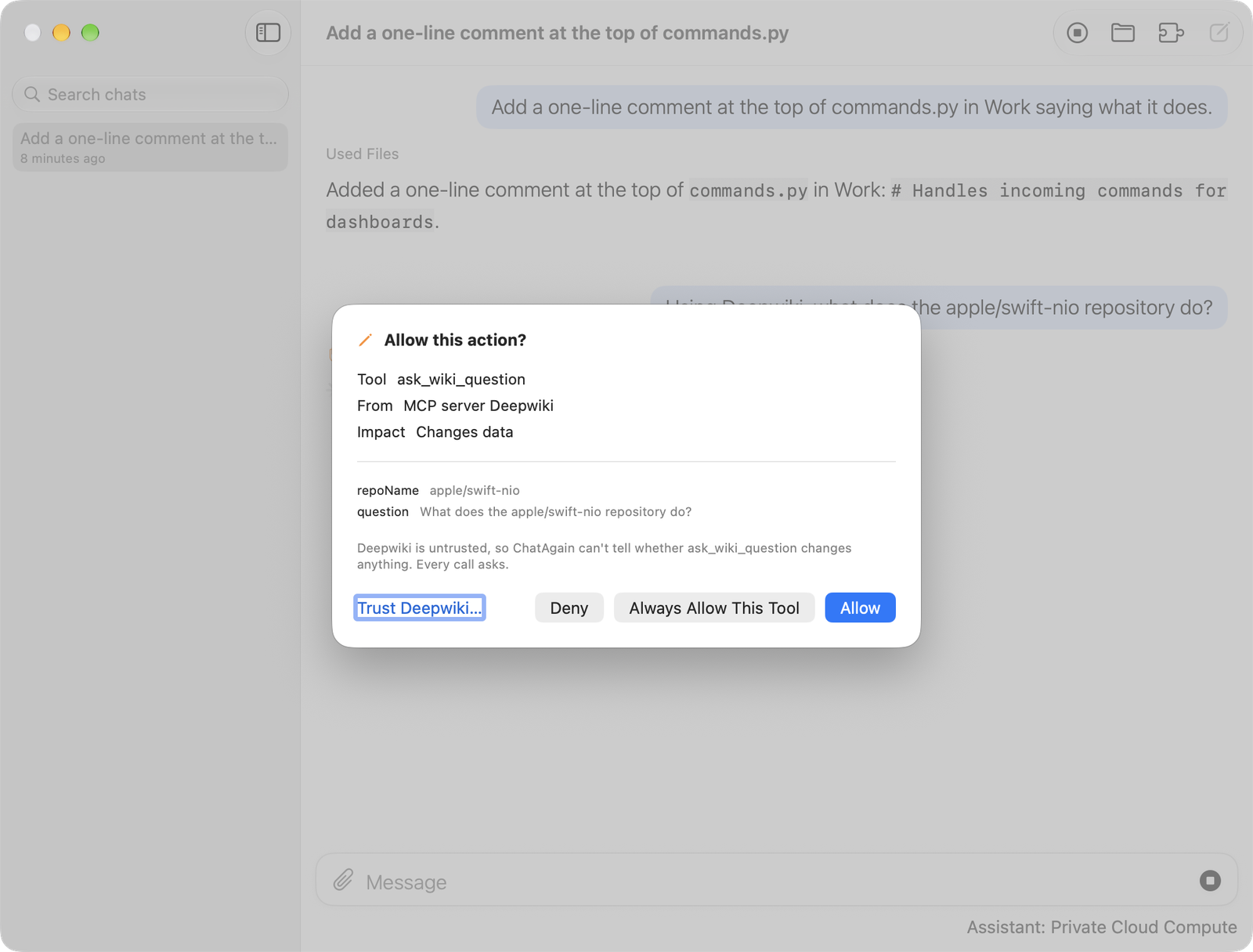
Before a tool source's tools run, ChatAgain checks with you. You can trust a whole source, or allow one tool, in the source's settings, or with Always Allow This Tool when it asks. It still asks before a tool sends out text it read from a file, a page or a picture.
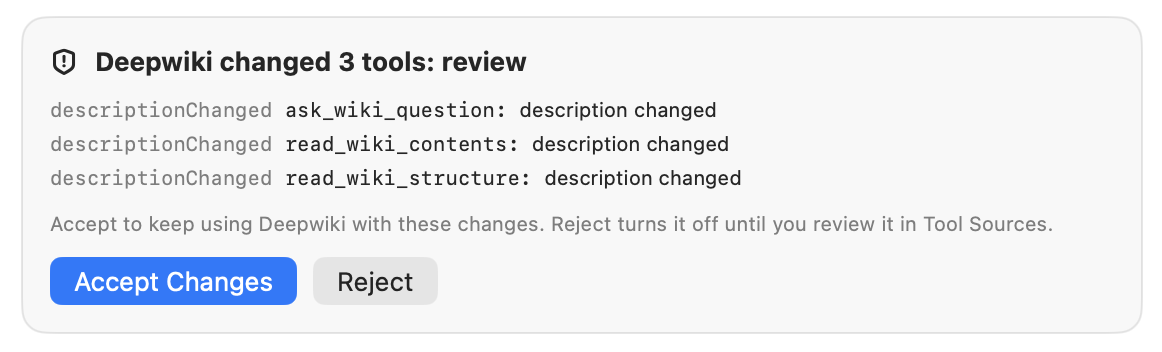
When a tool source changes its tools
A tool source can change its tools after you add it. ChatAgain remembers the tools you accepted and compares them each time it connects. A tool's description matters most, because it is text the assistant reads, and the place where hidden instructions would go.
- A changed description, or a tool that now says it can change or delete data: the next time a message needs that source, ChatAgain lists the changes in the chat before anything runs. Accept Changes keeps using the source. Reject turns it off until you review it in Tool Sources.
- A new tool: it stays off until you accept it. So does a new tool with the same name as another source's tool, which the assistant could not tell apart.
- A source that reports a different name: it is disconnected until you review it.
- Smaller changes, such as a tool removed or a new optional setting, are taken and noted.
A change you have not accepted is shown again each time the source connects. It never quietly becomes the new normal.
7. Chats
- New Chat starts a new chat. Your earlier chats stay in the sidebar, as many as you like.
- Search chats with the search box in the sidebar.
- Export. Chat > Export Chat… saves a chat as Markdown. Chat > Copy Chat copies it.
- Copy a reply with the button under it.
- Custom instructions. In Settings, tell ChatAgain about you and how to answer.
8. For IT: audit logs
An organization can turn on audit logs through MDM, for any install. Nothing is logged unless it does, and the person using the Mac cannot turn it on or off. Settings says so while it is on.
- To turn it on: push a configuration profile that sets the managed preference
AuditLogEnabledto true for the app's bundle identifier,ai.thisbrain.chatagain. The app checks it at launch. - What is recorded: when messages were sent and how long they and the replies were, and each tool the assistant used or was refused, with the names and lengths of what it was sent. Never the text of messages or replies, or what the tools returned.
- Where: a file inside the app's container on the Mac. Nothing is sent anywhere. Your organization collects it.
9. Limits and messages
Apple limits how many Private Cloud Compute requests each person can make per day. An orange notice means you are close. A red one means you have reached it, and it shows when it resets. Your chats stay readable. The limit is Apple's, and the same for everyone.
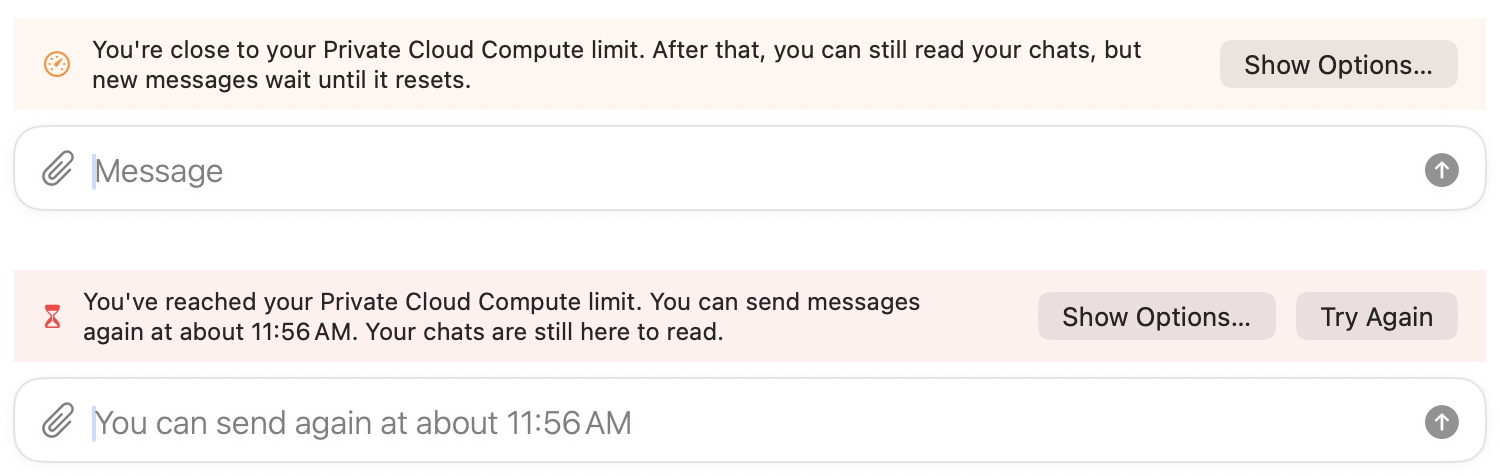
If ChatAgain says Private Cloud Compute is not available, check the requirements in Before you start, make sure you are online and signed in with your Apple Account, and click Try Again.
10. Deleting your data
- A chat: delete it from the chat list. Its pictures and files go with it.
- A folder: click the folder button and choose Remove.
- A tool source: remove it under Tool Sources. Its sign-in goes too.
- Everything: see Deleting your data in the privacy policy.
11. Still stuck?
Read Support, or email neuron@thisbrain.ai.